
An AI workspace
for real estate agents.
Create branded posters and videos from your listing photos. Share a page of properties for buyers to compare, then use their feedback to plan your follow-up.
Already have an account? Open AgentOS
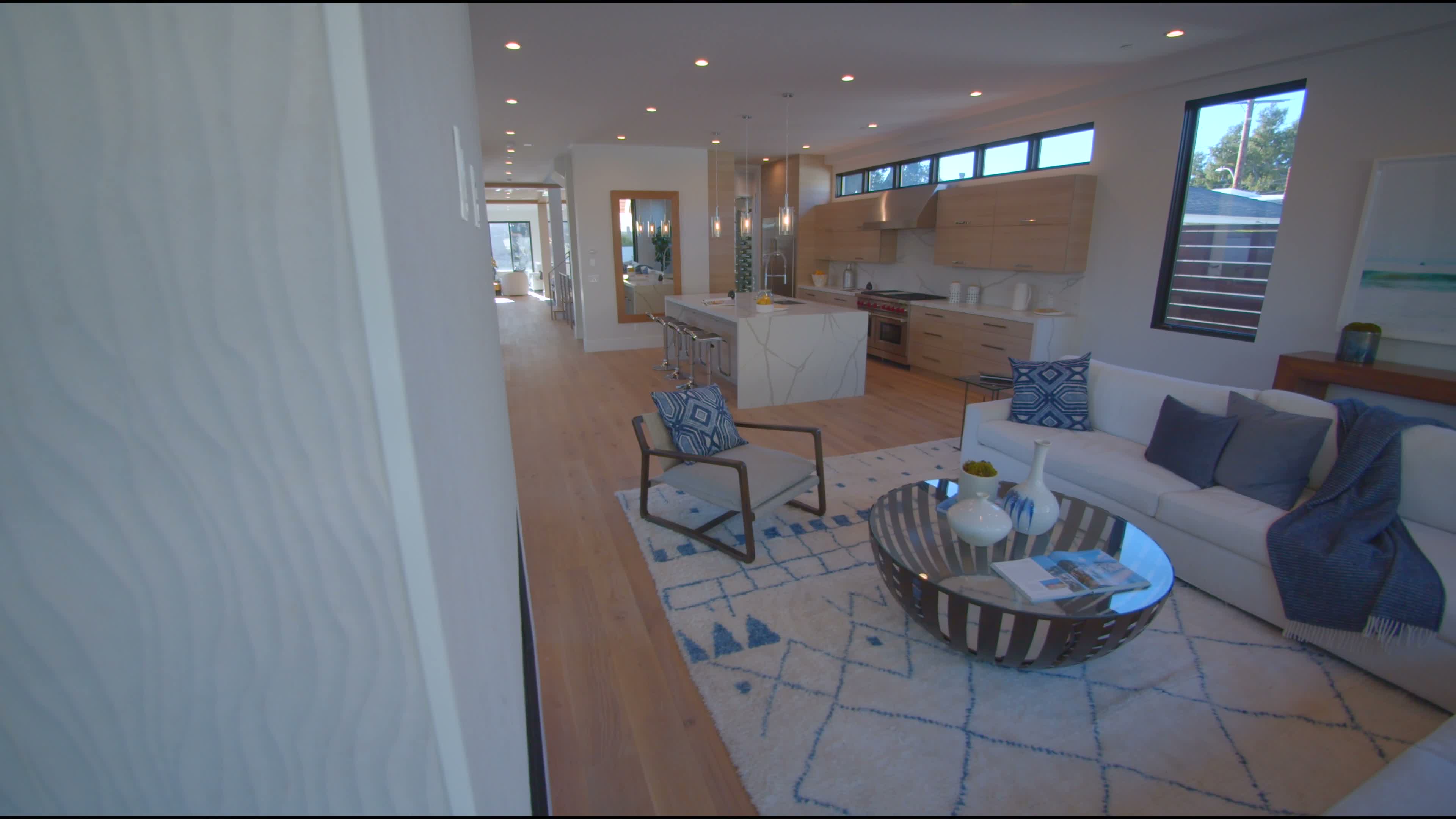 9:16 Portrait video
Add your photos, copy and branding.
Posters and videosRendered with an AgentOS template and licensed stock footage. Not a current listing. See more examples ↗
VIDEO EXAMPLES
Watch the finished videos.
Listen to the narrated tours, watch the video-editor example and compare the template styles. These are demonstrations, not current listings.
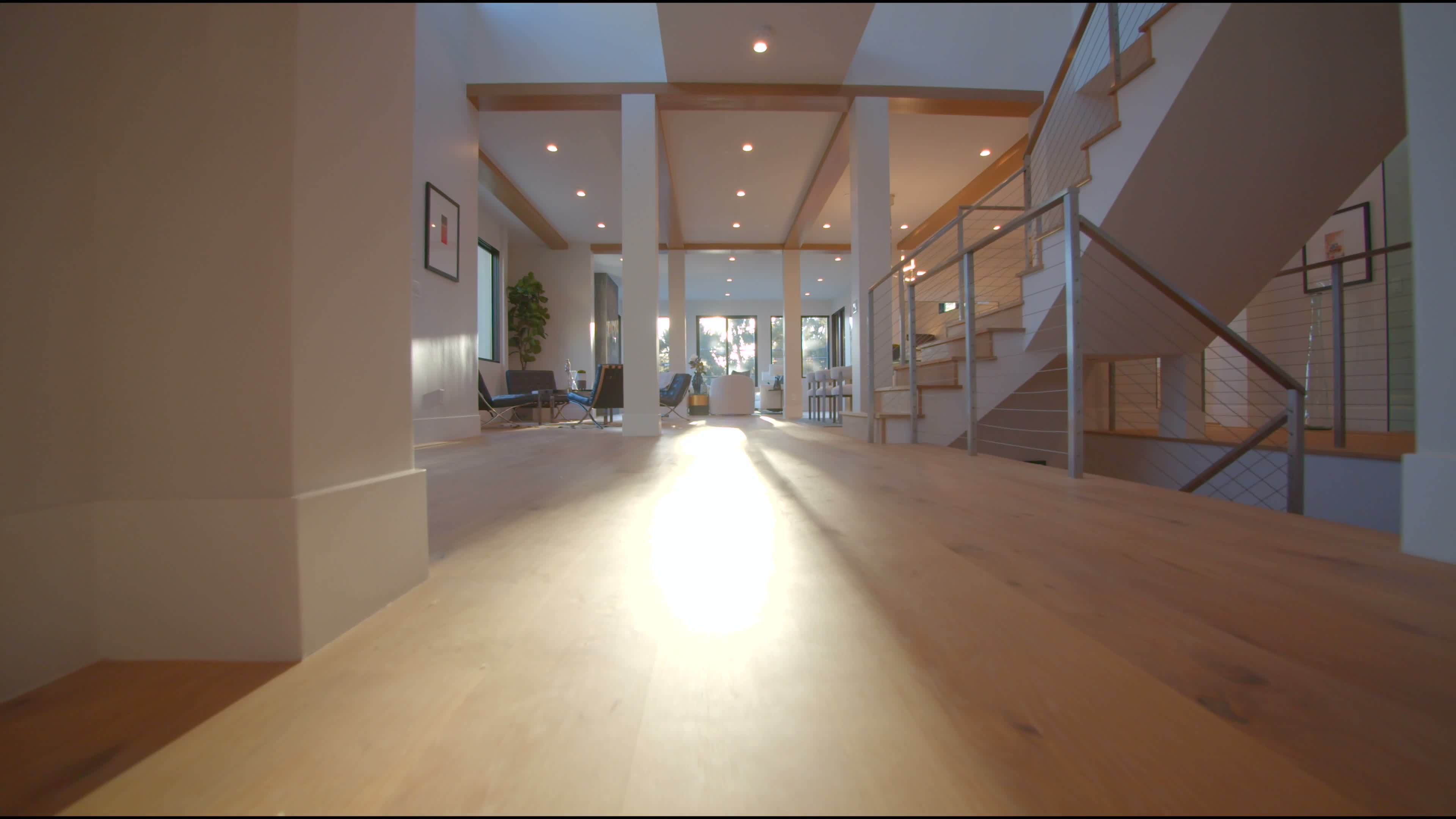
A narrated interior tour
Rendered in AgentOS from licensed Pexels imagery with captions and the JImmy Chang WH voice via Fish Audio. Sample imagery, not an active listing.
A narrated detached-home tour
A separate detached-home example using licensed Pexels images, rendered by the same template and AI voice. Property facts and contact details are intentionally omitted.
An example from the video editor
The existing example from the AgentOS video editor. The address and price shown are fictional demonstration details, not an active listing.
A multi-room showcase
A grid layout that brings several rooms into one video. Rendered with the actual template and licensed footage.
A portrait room reel
A portrait format for showing room views on a phone. Rendered with the actual template and licensed footage.
The narrated samples retain the template’s default photo crops and empty bed/bath labels. Contact details are hidden; no agent or property owner endorsement is implied. Make a narrated video with your photos ↗
POSTER EXAMPLES
See the poster layouts.
Open any poster to see the full-size image. All property and event content is for demonstration.
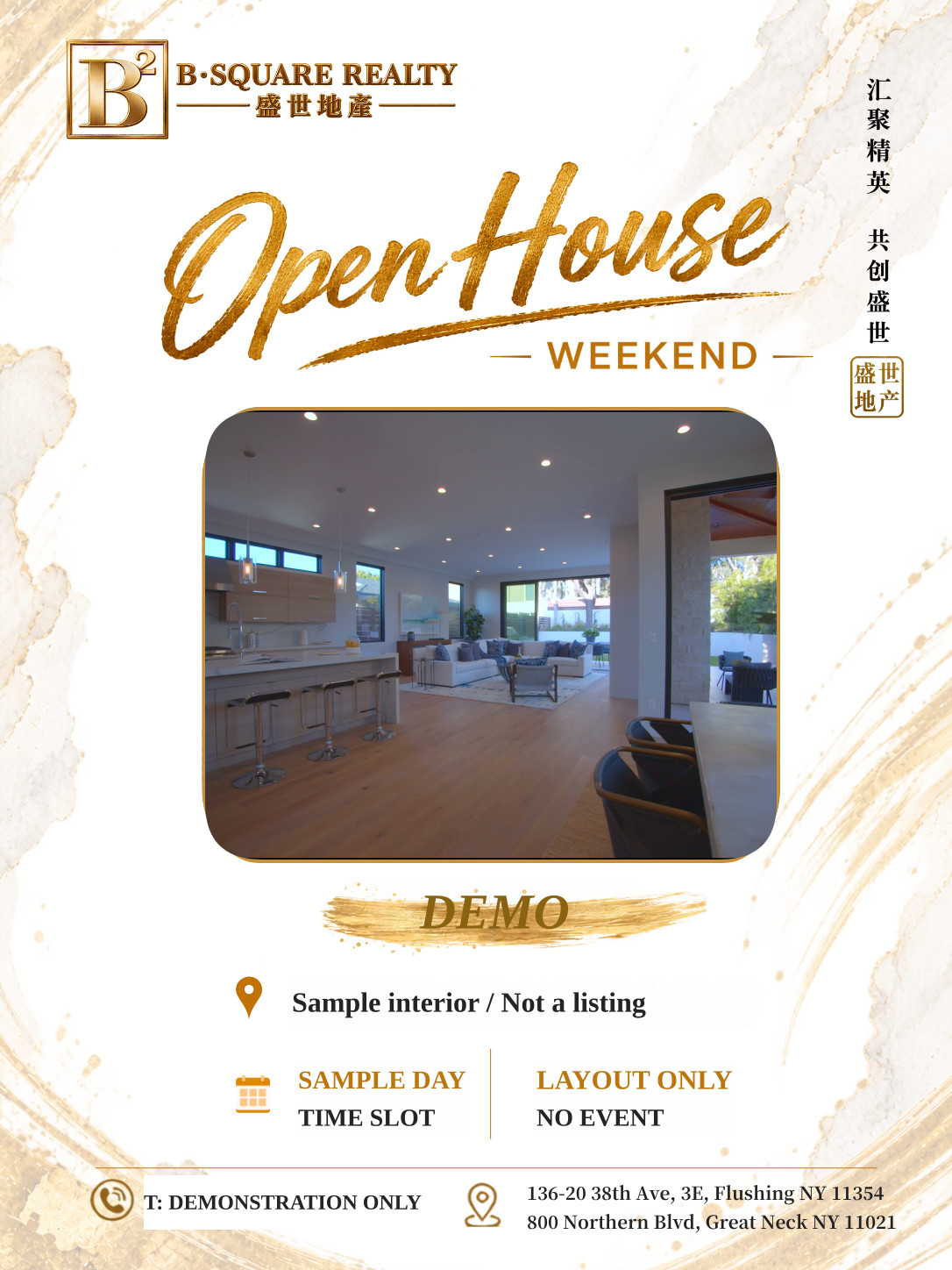
Open house
An event-poster layout. No real event is advertised.
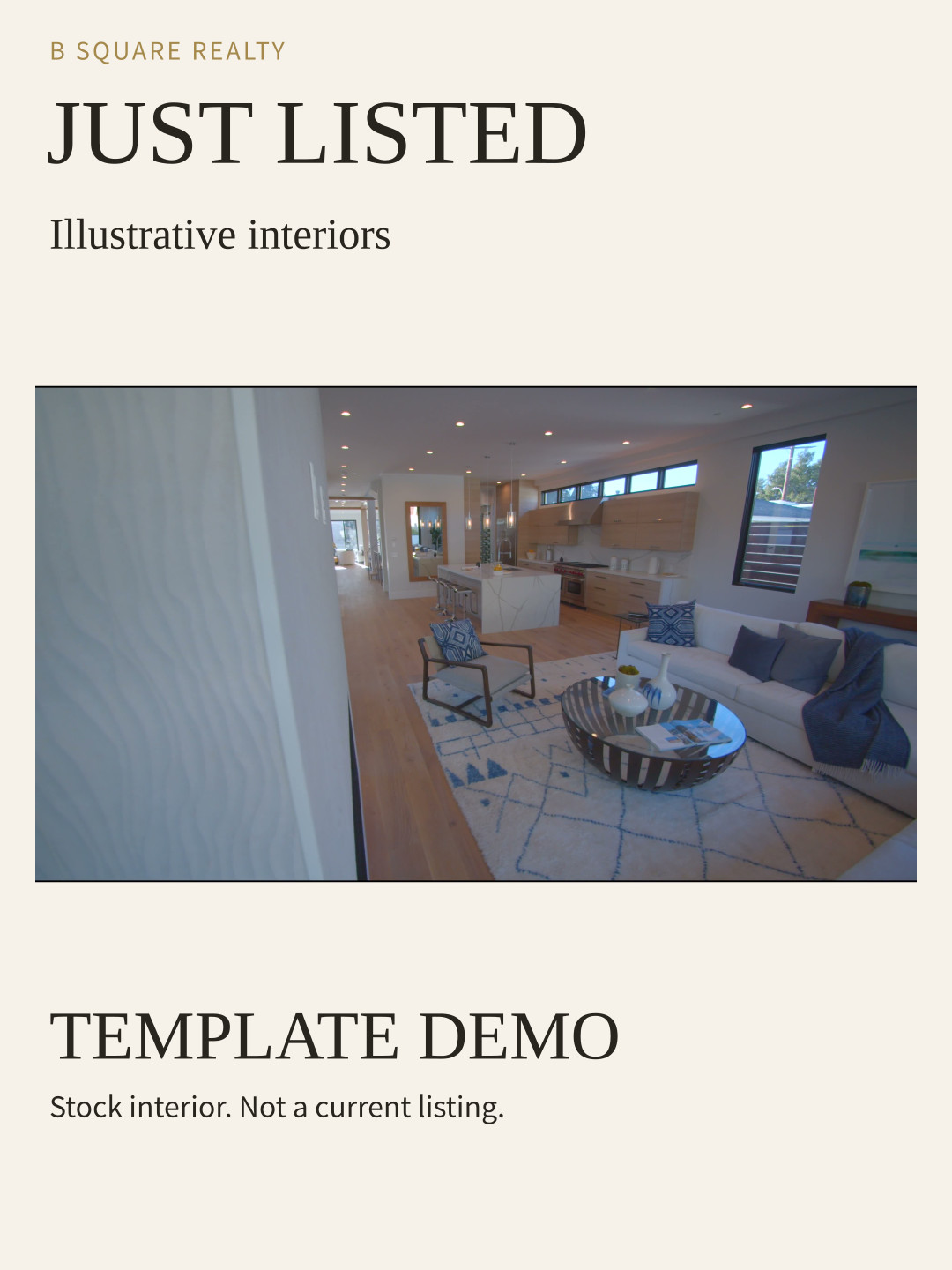
Just listed
A listing-announcement layout using sample content.
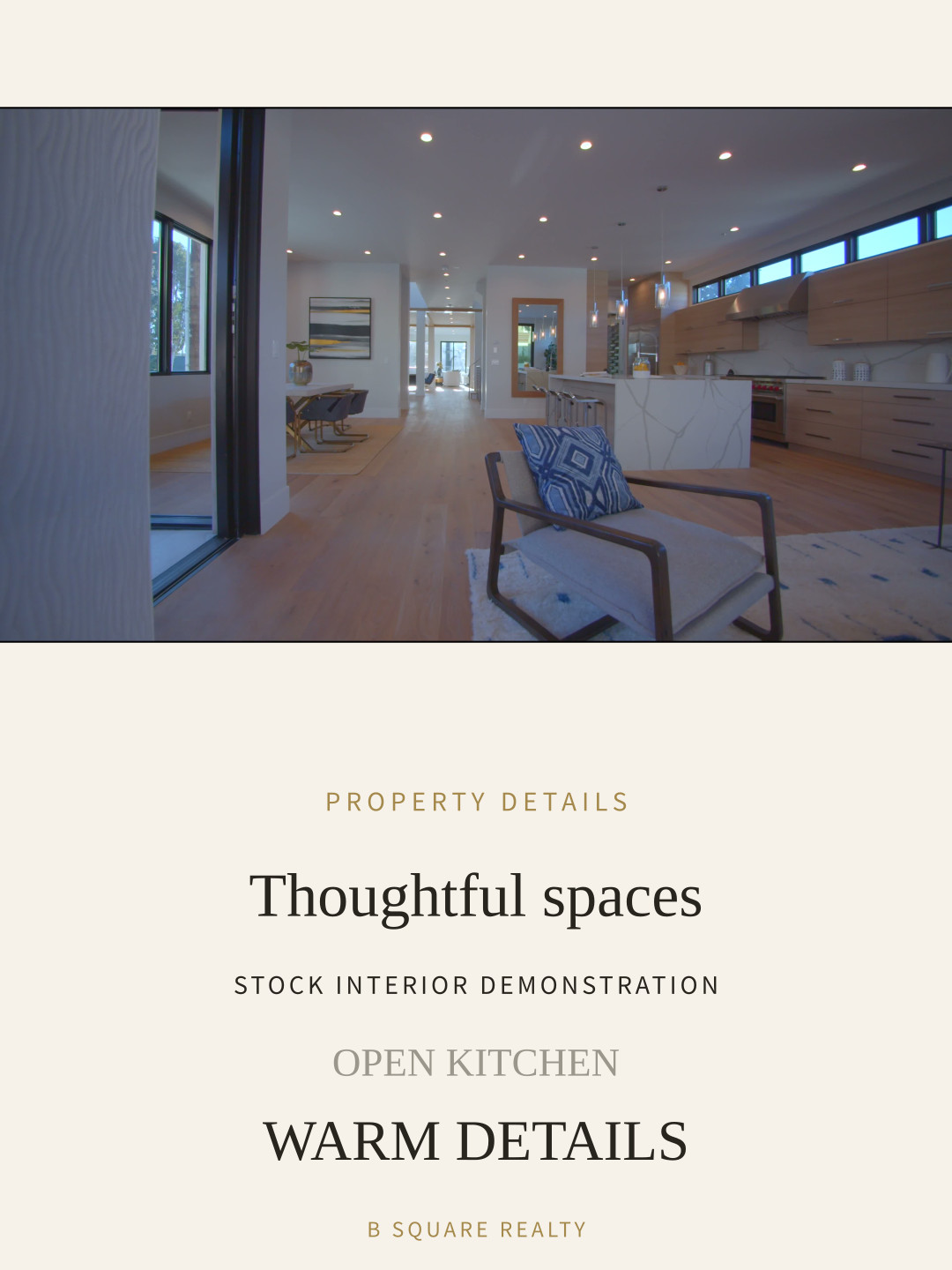
Property details
A layout for photos and property information.
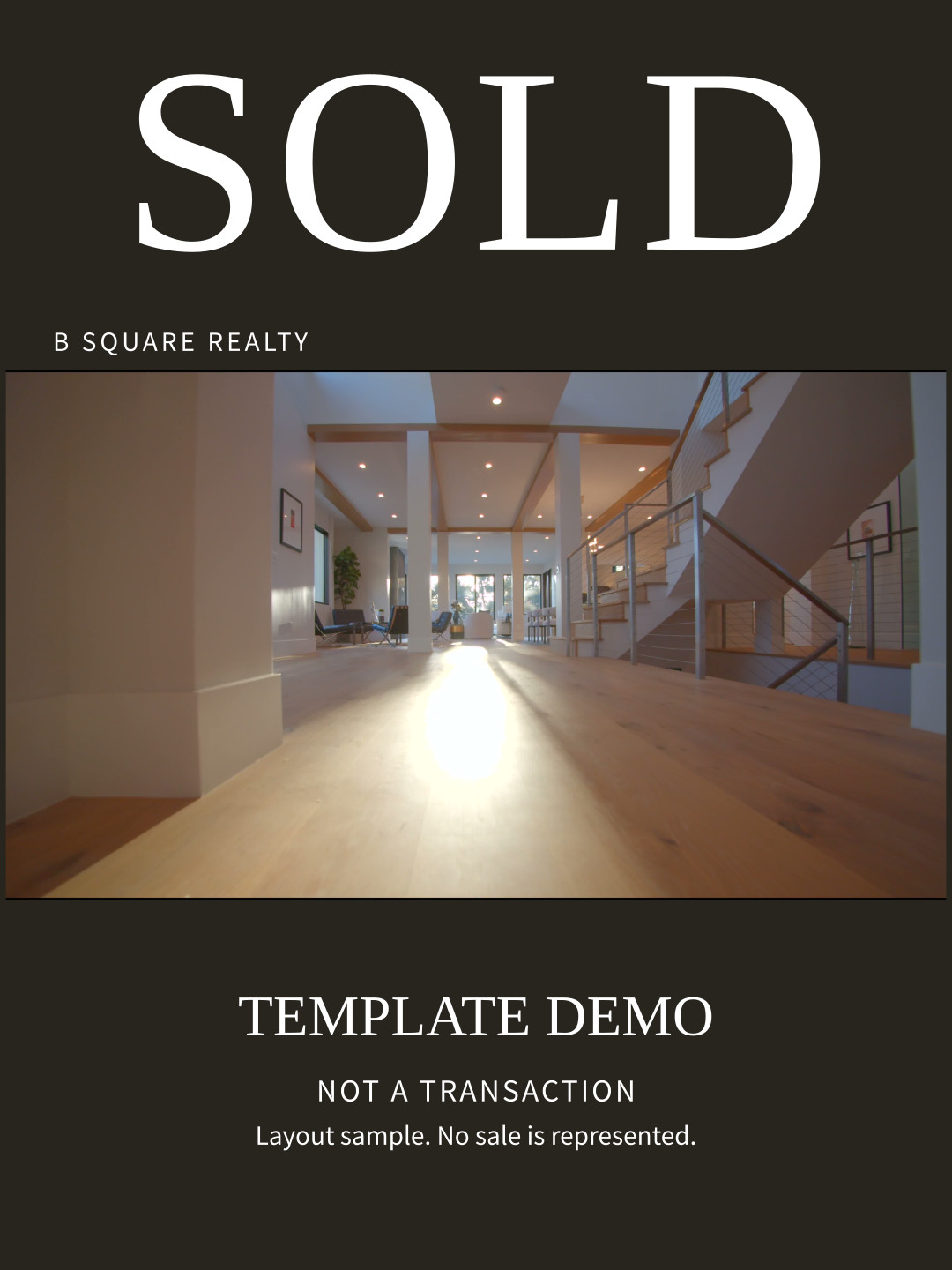
Sold
A sold-poster layout. This is a template example, not a completed transaction.
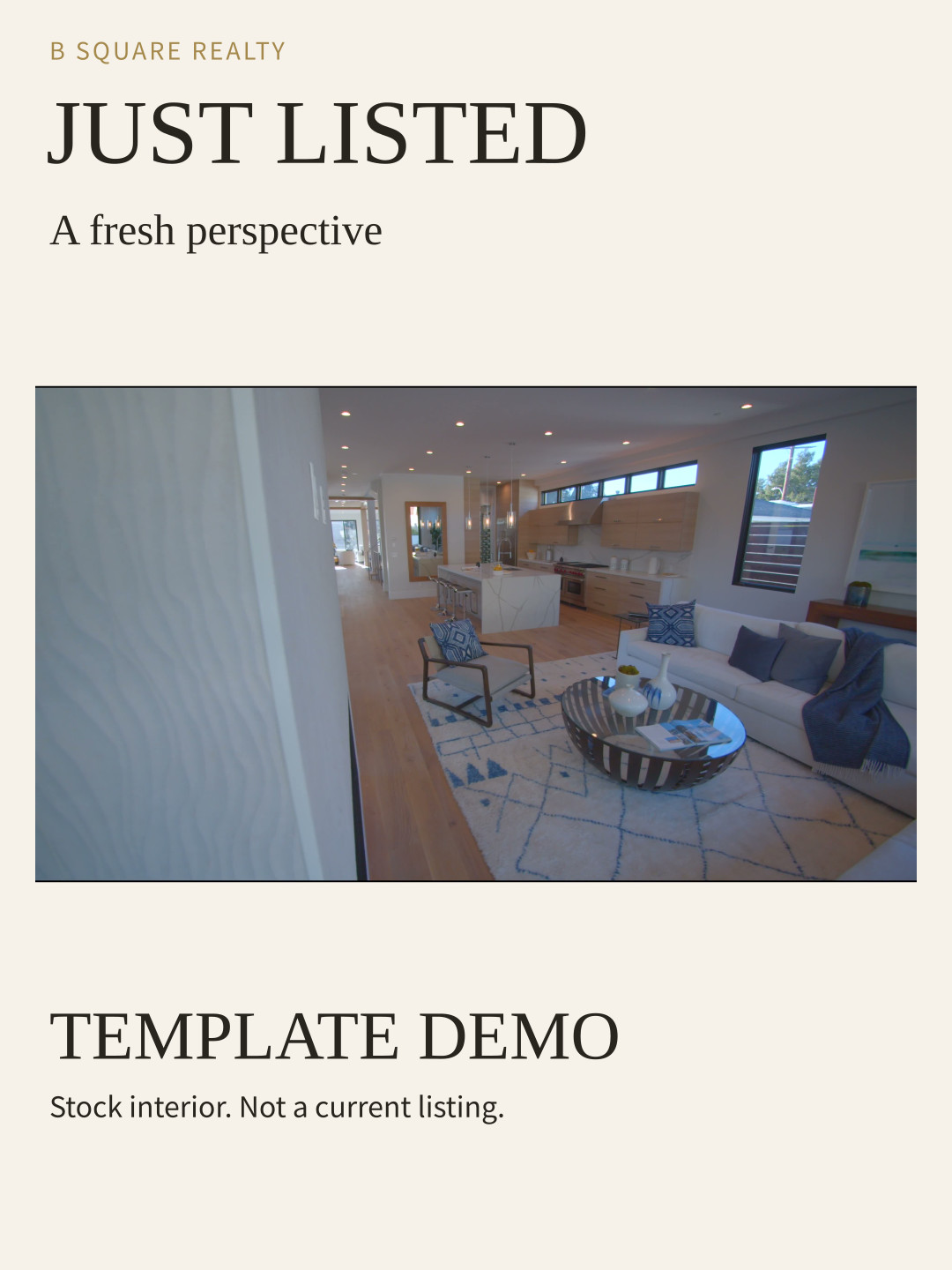
Just listed: another example
Another image and copy treatment using the same listing template.
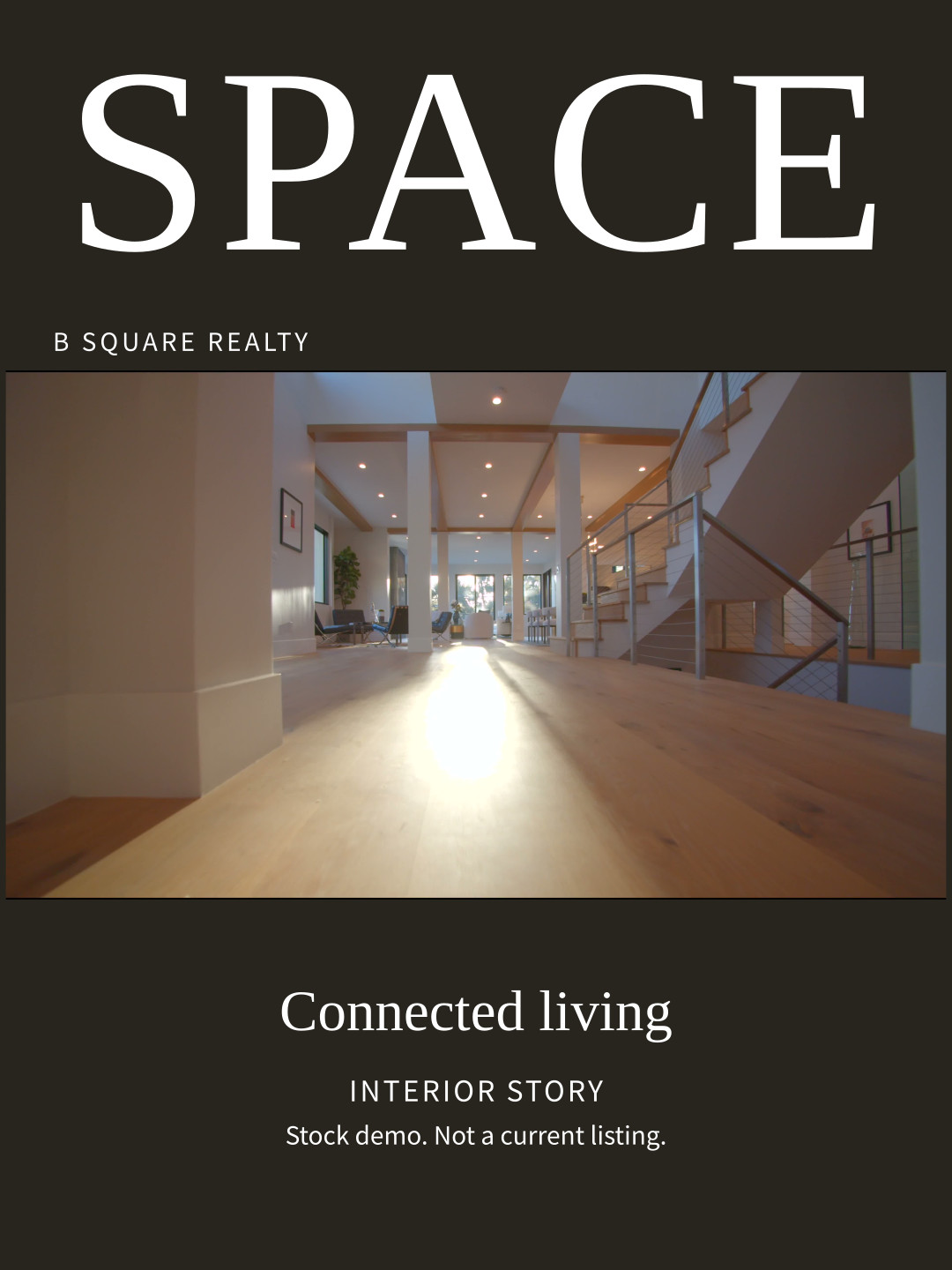
Interior feature
A photo-led layout for highlighting an interior. Demonstration only.
GIF
Short, looping previews.
Based on built-in GIF templates, rendered with licensed images and demonstration copy. Click to play or stop. No active listing, event or price change is represented.
Just listed
Built-in GIF template demonstration · 6s
Open house
Built-in GIF template demonstration · 4s
Price update
Built-in GIF template demonstration · 4s
A TYPICAL WORKFLOW
Prepare the listing. Follow up with buyers.
Create the materials, collect feedback and decide who to follow up with.
- 01
Select a listing
Check the photos, details and branding.
- 02
Create the materials
Make a poster, video or property page.
- 03
Review client feedback
See which properties clients ask about.
- 04
Plan your follow-up
Use workflows for repeated steps and add review where needed.
Example workflow. Available connections and review steps depend on your setup.
EXPLORE THE TOOLS
01 / CONTENT STUDIO
Create listing materials
from your photos.
Choose a listing and a template, then add your branding. Edit the copy, voiceover and captions before exporting. You can also ask AI to help customize a template for future listings.
- Posters and landscape or portrait videos
- Reusable templates with your branding
- AI-assisted template creation
Made with an AgentOS landscape template and licensed residential footage. Not a current listing.
Made with an AgentOS portrait template and licensed residential footage. Not a current listing.
Manually edited to demonstrate clip selection, sequencing and color adjustments. Not generated by AgentOS AI editing.
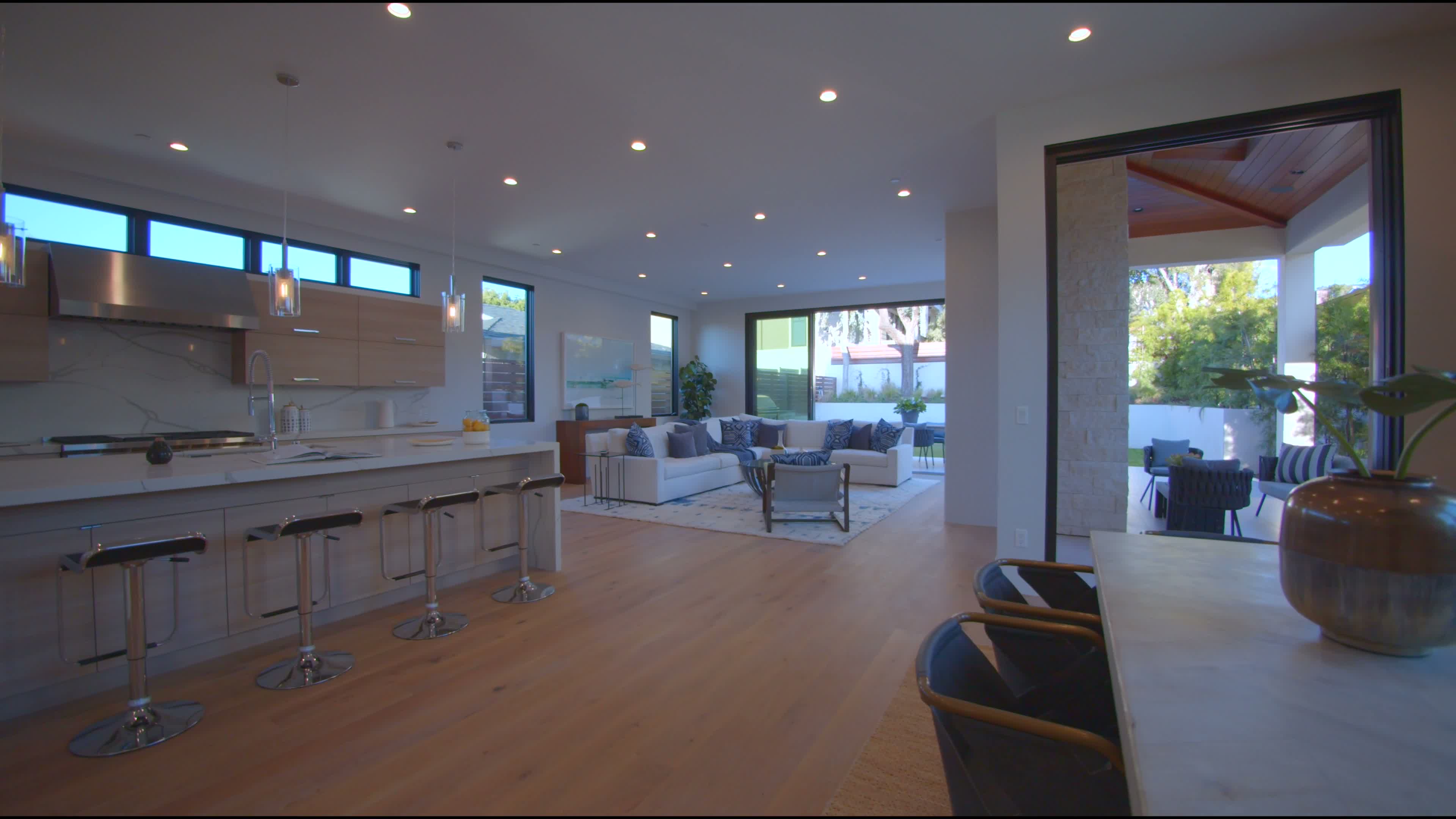 Listing posterPOSTER LAYOUT / ILLUSTRATION
Choose a layout and add your listing photos and contact details.
Illustrative poster layout02 / CLIENT PAGES
Give buyers one page
to compare properties.
Put several properties on one page and explain why you selected them. Buyers can compare the options, mark their interest and ask questions. Their feedback stays with the relevant property.
Draft a property page with AI ↗Which would you like to see?
Sample properties. Select a heart to see how feedback appears.
Sample property 01
Sample property 02
Sample property 03
Select a property above to preview the feedback.
Demo only. Your selection is not sent or saved to a client record.
03 / WORKFLOWS
Set up a workflow
for recurring marketing tasks.
Use a schedule or a listing change to trigger content creation, then connect the apps you have authorized. Add a review step to check the draft and recipients before publishing or sending.
Build a review workflow with ChatGPT ↗Review the draft
Check the listing details and copy before approving.
Demo only. These buttons do not run a workflow, publish content or send messages.
04 / SHOOT & EDIT
Plan what to film
before you arrive.
The planned filming workflow starts with a script and shot list. Record on your phone, then use AI-assisted editing to organize the footage. Review the finished video before sharing.
An example of shot order and color adjustments
Manually edited example, not an AI-generated video.Opening
Start with the exterior. Hold the camera steady, then move slowly toward the entrance.
Create a reviewed photo narration ↗This filming workflow is separate from template videos. Automatic editing is not available for every device or account. The example shows a manually edited result; the shot-list buttons do not upload or process media.
05 / AI & VOICE
Ask the assistant about
the work in front of you.
Ask for a listing introduction, client follow-up notes or guidance from team resources. Type your request, or use speech-to-text on a supported device. Check the source material before using the answer.
Try a real workflow task ↗What would you like help with?
Select the listing you want to introduce. I can help draft the copy from the details and photos you can access. Check it before making a poster or video.
Sample replies only. This demo does not call AI or use your microphone.
06 / AI INTEGRATIONS
Use AgentOS from your AI tools.
Connect a compatible AI tool to AgentOS. From there, you can request posters, videos, marketing pages or workflows using the resources your account can access.
- Authorized listing & brand data↗
- Poster & video templates↗
- Marketing pages & workflows↗
Setup and available tools vary by AI client and account. The names shown do not indicate a partnership or support for every feature.
Build an authorized cross-app workflow ↗07 / ON THE GO
Open your workspace
between showings.
Add AgentOS to your phone’s home screen to open your workspace between showings. On a supported device and browser, you can also choose to receive notifications.
- A Home Screen shortcut to your workspace
- Optional notifications on supported devices
- Use the same account on your phone
YOUR WORKSPACE
ON YOUR PHONE
Good morning.
Open your workspace.
You have a notification to review.
Open your workspace to see the details.
JOIN B SQUARE
Learn about working
with B Square.
Meet the team and learn about the support and tools available to B Square agents. Talk with us about your real estate business and what you need from a brokerage.
You can ask to try AgentOS without committing to join B Square.
AGENTOS AUTOMATION GUIDES
Workflows, templates and AI integrations.
Build a review workflow in ChatGPT, schedule recurring work or create reusable templates. Each guide includes the inputs, a prompt you can use and checks for the result.
Build a review-first marketing workflow with ChatGPT
Create a saved workflow draft that reads one listing, asks for approval and renders a poster only after approval.
6 min read↗Automation02Prepare a weekly listing poster on a schedule
Turn a reviewed poster workflow into a weekly job with an explicit timezone and approval before each render.
6 min read↗Automation03Make a new listing poster after a price change
Build a listing-specific price-change workflow that rechecks facts and asks for review before making a new poster.
6 min read↗AI templates04Design a reusable poster template in ChatGPT
Turn a layout brief into a personal template with editable bindings and a real sample you can inspect.
6 min read↗AI templates05Build a photo-to-video template with ChatGPT
Create a reusable vertical story with a defined photo order, readable titles and a verified motion preview.
6 min read↗AI video06Prepare a narrated property tour with a reviewable script
Produce a scene-by-scene script and confirmed render request, with each sentence tied to a specific image.
6 min read↗AI pages07Ask ChatGPT to build a property-shortlist page
Create a saved, previewable shortlist page with source-backed property details and no private buyer information.
6 min read↗Integrations08Sync Airtable notes to Notion with a review branch
Build a precise cross-app workflow: update only one matched record and pause for selected values.
6 min read↗Common questions
Is AgentOS only for B Square agents?
AgentOS is designed for B Square agents. If you have an account, you can sign in. To try the tools or learn about joining B Square, contact our team about access.
Are these videos and demos real?
Videos labeled “AgentOS template render” use actual AgentOS templates and licensed footage. The editing example was made by hand. None of the sample properties are current listings. The interactive demos do not send messages, publish content or update client records.
Does AI publish or contact clients automatically?
That depends on the workflow you configure. You can add a human-review step before publishing or sending. Check the content, recipients and connected apps before enabling a workflow; account permissions also limit what it can do.
What do I need for external AI and mobile notifications?
External AI requires a compatible client and an authorized AgentOS connection. Mobile installation and push depend on your device, browser and notification permission. On iPhone or iPad, add the web app to the Home Screen before enabling supported push.
About the demonstration footage
Residential footage and still frames by Kindel Media, used under the Pexels License. These are illustrative interiors, not B Square listings or an endorsement by the creator or property owner. Pexels License ↗